AF News

Showing posts with label ASHIBINAA. Show all posts

Friday, March 14, 2014

International Driving Permit/License - Okinawa

International Driving Permit 

 So I needed an international driving permit (IDP) for my trip to South Korea pronto. I am normally on top of getting everything I need to travel way ahead of time, but this slipped mine mind completely! Normally you would have to mail your IDP application back to the States, and then wait for it to get back, but I didn’t have that much time. It would take a month going that route, mailing back and forth, and I figured there had to be a way to get one here on the island. Well come to find out, there is! You got to take a trip down by the ASHIBINAA Outlet Mall area, more specially, just down the street past the mall. No joke, the place you have to go is right there, way easy to find, right behind the Nissan dealership. Anywho, if you still have time to mail the IDP application back to the states, you can order an IDP from  two places ONLY. The AATA and AAA are the only authorized IDP issuers in the States, so don’t fall for the scams that are floating out there. Here the links…


Alright, here is the address to the place and a picture of what the building looks like…

Address:  3-22 Toyosaki, Tomigusuku-shi, Okinawa-ken

Google Map Link:  http://goo.gl/maps/XQY6b

3-22 Toyosaki, Tomigusuku-shi, Okinawa-ken
Here is info off the internet about what to bring to the place. My Japanese friend printed it up and translated the key parts for me. I do want to note that you can do this at some office near Gate 5, but it takes weeks to get back, and I don’t know exactly where it is. I think they basically take all your paperwork and then send it to the main IDP office anyways. Better off driving there yourself….

IDP Information

IDP Information
The main things to note…

1. SOFA license has to be good for over a year.

2. Bring Passport. I don’t know why they need it, but they want to see it.

3. Picture. I used the photo booth right there in the front of the Kadena BX. I would get pictures as close to the size you need for the IDP. Don’t stress too much about it though, you can get pictures done there at the IDP office.

4. Yen

5. Mind the hours, they are closed during lunch.

Well, I was smart and went after their lunch hour and there was barely anyone there. I was in and out in less than 20 minutes, but your mileage may vary. I even got there super fast from Kadena, took the express way all the way down, and no traffic! Friday, was a good day… =) Anyways, They make it right there while you wait. When you go into the building, you should see a sign like the one pictured below …
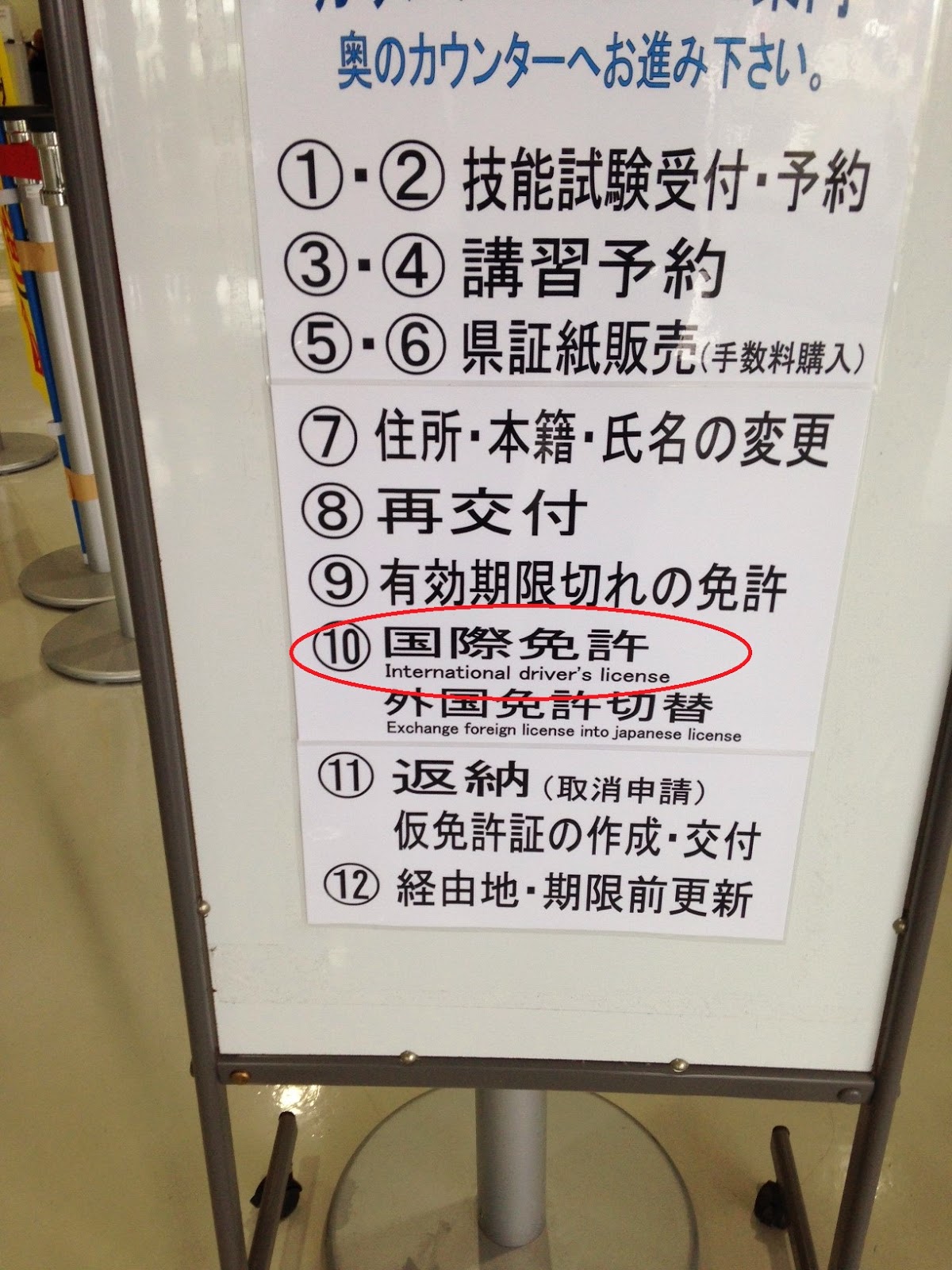
Near the Front Door of IDP Office

If not, they speak English in there, so you should be fine asking someone. I had to go to counter 10 when I went. And you will find the English language application form there. Here is what you do. Grab the form first, fill it out at the fill out station, then go to the middle counters to pay the fee, and THEN you can take everything to them to start your IDP. Overall, it was way simple and easy to do. I was nice enough to grab the English language application for ya’ll viewing pleasure. Enjoy!

IDP Application English 

Monday, October 14, 2013

Casio GB-6900AA Review

Casio GB-6900AA
Casio GB-6900AA

One of the things I left with from our ASHIBINAA Outlet Mall shopping trip was the Casio GB-6900AA that cost me around $126 at the current exchange rate. I was looking for a new watch to wear in uniform, since the Casio I have now is over 5 years old, so it is time for some change. I got the watch at the G-Shock store (obviously!) and there was plenty choices in there, definitely a benefit of being in Japan. The staff was very helpful, however their English was sparse, but they had English product sheets I could read for the watches I was interested in though. Well, this watch caught my eye since it can link up to your iPhone 5/Galaxy 4 and vibrate/beep when you get a call or email; you can even use the watch to find your phone! If you noticed that I left out SMS notifications, you would sadly be correct in your observation. I didn’t catch that when I bought the watch, and that feature would make this watch perfect for my use, instead of almost perfect. I do want to clarify that that the SMS notification feature doesn’t work with the iPhone 5 only, it will work with the Samsung Galaxy 4 though. And those are the only two phones this watch works with at the moment, and I think it has to do with the low power Bluetooth radios these phones have. I am sure more phones will be compatible as that feature gets integrated into more phones in the future.

Well besides not have the SMS notification option, this phone has proven still useful for me. The main reason I got this watch is that I don’t notice sometimes when I get a phone call when I am out and about. Most of my work days include being meetings and I have my iPhone on vibrate basically all day. I also keep my phone in my ABU pant’s thigh inner pocket, which makes it hard to feel if the phone is vibrating. So I thought having this watch would help me not miss calls, and it does that pretty good so far. I think this watch would also be good for people that keep their phone packed away in a merurse or backpack and still want to know if they get a phone call, without having to have the ringer volume on full blast on the phone. Overall I am happy with this watch, and if your application is similar to mine, be sure to give this watch a chance! Now, on to some details on the watch…

1. You have to use a separate G-Shock app for your phone for the feature to work on your watch. It is free and I have had no problem on the iPhone 5 using it. It is primarily used to link the phone to the watch, and to set up your alerts.

2. Incoming calls do not have caller ID when sent to your watch, it just flashes you have a call on the watch.

3. Like I mentioned before it doesn't send notifications to the watch when your get SMS on the iPhone 5, and this is probably due to the closed nature of the iOS system.

4. The email notification works great, but you have to save your email login details on the G Shock app first for it to work. Once that is set up though, you will get the notifications of new emails on the watch, and it even scrolls the senders email across on the watch display!

5. The next feature this watch has is the find phone feature. Once the phone and watch are linked, you can hold down a button on the watch and it will make your phone emit a very loud melody/music (of your choosing) to help you find it if you misplaced it. This feature works well and I am sure I will use this in the future. Of course this will only work if the phone and watch are still connected to each other. If you have no signal you are out of luck, but I noticed they will stay linked to each other, even if they are in different rooms. Which by the way, the phone will notify you when the connection is lost. I think that feature is great for people who forget their things all the time, like my wife! For example, the wife is at a café with friends and she puts down her phone on the table. They then finish up yapping awhile later and walk away to pay the bill. By the time they get outside, the connection between her watch and her phone has been lost, and the watch will beep/vibrate at her. This will hopefully remind her that she left her phone on the table!

Well that is about it on this watch. I have the link to the feature comparisons of this watch and the other similar models from Casio right below for your shopping needs…